Most of us have more things to get accomplished than we can keep track of. I find that a useful
to do list is invaluable to keeping me on track. A solution that helps me stay on top of my CFF tasks is a simple to do list tied into my
MV Webmail account. I can add tasks to the list from anywhere I can access email, even from my mobile phone or iPod.
There are three steps to getting this kind of
Webmail to do list up and running: create a special folder for your
to do items, make a filter to sort your
to do list tasks from your other mail and send them into your
to do list folder, and inserting a
flag into the subject line of the emails.
1) Create a special folder for your to do items.
On the
Webmail toolbar, click the
Folders icon.
Next, name your
to do folder, in this example I used the name
ToDo List, then click the
Create button.
Now a folder with that name should appear in the folder list below.
2) Make a filter to sort your to do list tasks from your other mail and send them into your ToDo List folder On the
Webmail toolbar, click the
Options icon.
From the available options, select
Filters and Exceptions You now have four things to do in the window that appears:
- From the drop-down menu next to If the, choose Subject
- Following Subject header contains, type 2DO:
- Choose move from the menu beside then
- and choose ToDo List from the menu next to IMAP folder
Then click the
Add button and the filter you just made should appear in the list.
3) Insert a 'flag' into the subject line of the emails that contain your to do list items. When you need to add a task to your
to do list, compose an email to yourself. In the subject line you MUST include the '
flag' that will send this to your to do list folder. That '
flag' is
2DO:. Also on the subject line, include a brief description of the task. If you wish, you may include more detail about the task in the body of the message.
That email should now be channeled into your
ToDo List folder. Select that folder and you should see a list of your tasks.
You might want to add a
priority number to the subject line, or
due date, or whatever else you like. Delete the tasks as they are completed.
Hope this helps you better manage your workload.
© 2008 Thomas Boito
![Reblog this post [with Zemanta]](http://img.zemanta.com/reblog_e.png?x-id=77c0be22-1add-4ef5-a26e-d41ff375aa53)

 Image by Cdammen via Flickr"Go to www.kennelclub.org and find out all you can about Jack Russell terriers and write a report."
![Reblog this post [with Zemanta]](http://img.zemanta.com/reblog_e.png?x-id=50e3b982-fb47-471f-99b8-e17da0c53425)

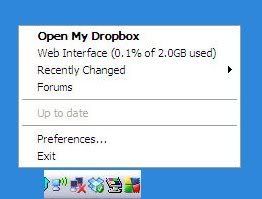 Your DropBox folder works exactly like every other folder on your computer's hard drive. You can access your DropBox folder by using My Documents or simply clicking the DropBox icon in the task bar.
![Reblog this post [with Zemanta]](http://img.zemanta.com/reblog_e.png?x-id=306bfb51-9526-45fb-8c7c-a0f9125a9cba)
 Image via Wikipedia Here are three great ideas using a wiki and engaging students in your online classroom.
 ![Reblog this post [with Zemanta]](http://img.zemanta.com/reblog_e.png?x-id=da59a5db-96d4-4354-ae39-666093e2fc0b)
![Reblog this post [with Zemanta]](http://img.zemanta.com/reblog_e.png?x-id=457b9fa5-cc18-44d2-9715-cd896a647640)

