Showing posts with label how-to. Show all posts

Tuesday, May 6, 2014

Featured 5-6-2014: AppInventor.org

AppInventor
 
Learn how to program Android mobile apps using MIT's App Inventor at AppInventor.org. An on-line book and video lessons walk you through the creation of successively more complex apps.

AppInventor 1
 
AppInventor.org is also intended to be used by teachers. The teaching materials included here have been used as a basis for middle school, high school, and college courses. The course-in-a-box provides structure and material to get a new course up and running quickly.

The book is designed for absolute beginners. It is organized in a way meant to motivate learning. The learner is walked through the creation of twelve successively more complex apps. The apps section is followed by a separate Inventor's Manual section which explains programming and computer science concepts in easily understood terms. Note: The book is a web document, not PDF.

AppInvento

These tutorials are refined versions of the tutorials that have been on the Google and MIT App Inventor sites since App Inventor's inception and have been used by thousands of beginners to learn programming.
 

 Go to the App Inventor YouTube channel
 
AppInventor.org is funded by the W.M. Keck Foundation and theNational Science Foundation. It is part of the Democratize Computing Lab at the University of San Francisco.
 
DISCLOSURE OF MATERIAL CONNECTION: http://cmp.ly/0
 

Sunday, February 3, 2013

Extra: 2/3/1013 Create Self Grading Assessments With Google Forms

Mike Reading is a Google Apps for Education Certified Trainer & Google Certified Teacher. He has written and produced a number of of resources that help teachers use Google to increase student motivation and engagement.

This quick 7 minute demonstration shows how you can use Google Forms to create a self grading assessment.

Teachers can use this technique to differentiate their learning programs, set homework tasks, conduct spelling tests, quick quizzes etc.

Wednesday, January 25, 2012

Easy Clip Sharing with Dropbox

(This is a reposting of an earlier post from 1/29/11. I think it's a really useful tip and worthy of another look.)

Have you ever been in a café browsing with your laptop and found an image, a URL, or some text you wanted to copy to use later at work or at home on a different computer?

20110129-m59f6899ech28fwkbwgxf8n6ii.jpg

Here's a quick, easy, free way to use your Dropbox account to do just that.

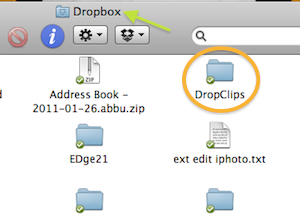
1. Make a new folder in your Dropbox folder to hold the items you clip. I named itDropClips for this example.

dropclipsindropbox.png

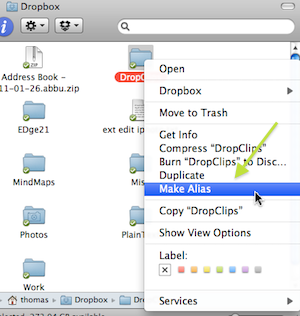
2. Right(Cmd)-click on the DropClips icon and select Make Alias.

makealias.png

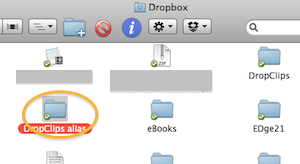
3. You now have a new folder named DropClips alias in your Dropbox folder.

aliasindb.png

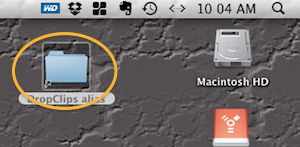
4. Drag the folder DropClips alias from your Dropbox folder onto the desktop of each of your computers.

dcondsktop.png

Now select any text, image, URL, etc that you want to copy and access from other computers and drag it onto the DropClips alias icon on the desktop. That clip will now be added to the DropClips folder in your Dropbox and be accessible from any other devices with Dropbox access.

(This how-to is Mac-specific, but I'm sure you can do something similar in Windows.)

Tuesday, December 6, 2011

COD - 12/6/2011 - Think Tutorial [Learning]

20111129-cr839ywr89k493xyisnix5cc7y.png

Think Tutorial is a library of simple, easy to follow tutorials covering many common computing skills.

An intuitive approach and design that keeps things simple and well organized is Think Tutorial's standout feature.

20111129-b3rqcspsdnd45iy8w471h7jn7d.png

Think Tutorial currently includes nearly 1500 tutorials totaling over 60 hours of instruction on MS Office, Adobe applications, iWork, social media, browsers, and much more.

Think Tutorial is completely free to use.

DISCLOSURE OF MATERIAL CONNECTION: http://cmp.ly/0


Thursday, November 10, 2011

Catch of The Day - Calcblog - 11/10/2011


Learn to use graphing, scientific, and financial calculators more effectively with useful tips and tutorials from Calcblog.

20111103-ds3s238cfa1guqi6k4rfiqb3ax.png

Calcblog covers many calculator topics for students, educators, and working professionals, including basic math, calculus, finance, statistics, and data analysis. Students can also prep for such standardized tests as the SAT, GRE, and GMAT.

20111103-dnex1tik659ndr39aru8qyyrn6.png

There are tutorials and tips in the following categories:

  • TI-83 Plus
  • TI-84 Plus
  • TI-89
  • TI-92 Plus
  • Algebra
  • Calculus
  • Statistics

20111103-puj8mnthjph6er1yn2ea3adf56.png

One of Calcblog’s primary goals is to be a resource for educators. There are many tips and suggestions for teachers on how to use the Calcblog website as a teaching tool.

DISCLOSURE OF MATERIAL CONNECTION: http://cmp.ly/0


Friday, July 29, 2011

Restoring Safari 5.0 in Snow Leopard Made Easy

rollbackp.jpg

Safari has been my browser of choice for quite some time now. I recently upgraded to Safari 5.1 even though I'm still running OS X 10.6 (Snow Leopard) on both my MacBook and iMac, and expect to continue this way for a bit. I use the Glims plugin for Safari which adds a bunch of really useful features to Safari, my favorites being address bar searching with keywords and adding additional search engines in the search box.

Unfortunately, some of the Glims plugin features were broken by the upgrade. Furthermore, I was having issues with Safari 5.1 seemingly leaking memory and beach-balling quite a lot after extended browsing.

Today I found this really simple (so long as you're comfortable with using Terminal) method for restoring Safari back to version 5.0.5 at Mac OS X Hints. I tried it and it seems to have worked fine. All the Glims features appear to be back and functioning.


Saturday, January 29, 2011

Easy Clip Sharing with Dropbox

Have you ever been in a café browsing with your laptop and found an image, a URL, or some text you wanted to copy to use later at work or at home on a different computer?

20110129-m59f6899ech28fwkbwgxf8n6ii.jpg

Here's a quick, easy, free way to use your Dropbox account to do just that.

1. Make a new folder in your Dropbox folder to hold the items you clip. I named it DropClips for this example.

dropclipsindropbox.png

2. Right(Cmd)-click on the DropClips icon and select Make Alias.

makealias.png

3. You now have a new folder named DropClips alias in your Dropbox folder.

aliasindb.png

4. Drag the folder DropClips alias from your Dropbox folder onto the desktop of each of your computers.

dcondsktop.png

Now select any text, image, URL, etc that you want to copy and access from other computers and drag it onto the DropClips alias icon on the desktop. That clip will now be added to the DropClips folder in your Dropbox and be accessible from any other devices with Dropbox access.

(This how-to is Mac-specific, but I'm sure you can do something similar in Windows.)

Friday, July 9, 2010

Catch of the Day - Learn It In 5 - Jul 9, 2010

Learn It In 5 is an online library of how-to videos for teachers wishing to use Web 2.0 technology in the classroom.

20100701-buigwrcny1921s919pfpnns5n7.png

Use the Learn It In 5 how-to videos covering many popular Web 2.0 applications to learn classroom strategies for teaching with technology. These step-by-step videos walk you through the technology, demonstrating how to use applications like blogs, social networks, podcasts, interactive videos, wikis, slidesharing, and more.

20100701-nhbew65x3ufep64sf3pbu1n96k.png

The Learn It In 5 video library is growing, with new how-to videos added monthly. Featured on the home page are the most recent videos. Other videos can be located using navigation tabs, on the archives page, or by using the search tool.

20100701-nhbew65x3ufep64sf3pbu1n96k.png

Learn It In 5 is operated by Mark Barnes, a technology teacher, online technology course instructor, and national presenter of The Paperless Classroom method of instruction.

DISCLOSURE OF MATERIAL CONNECTION: http://cmp.ly/0
Saturday, June 12, 2010

Search the Way You Want It

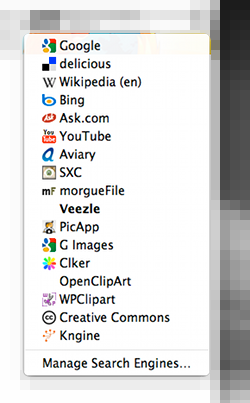
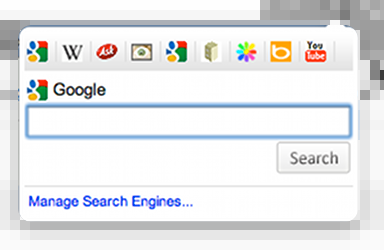
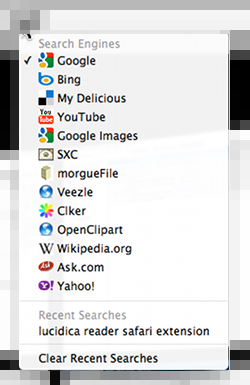
Did you know that you can customize the search engines available from the search box in Firefox, Chrome, and Safari? It's a fairly easy job to add searches from almost any site you want to each of these browsers.

Each browser has a somewhat unique way of accomplishing this. In each case, you'll need to download and install a free browser add-on or extension.

Firefox

FFcustomsearch.png

For Firefox, install the Add to Search Box 2.0 add-on.

icondownload.png

Download it here

Adding search options in Firefox is the simplest. After installing the add-on (and restarting Firefox), just navigate to the site whose search you want to add and right-click in the site's search box. Choose Add to Search Bar…

20100612-mgs413nm5utcwmtx3ehtdafhth.png

In the dialog box, name the search and assign a keyword (optional), click OK.

20100612-q44j624u2s4ttfyxse2dm31ge5.png

You can disable the Add to Search Bar add-on after you've added the desired search tools.

For both Chrome and Safari, you need to first visit the site whose search you want to add and do a simple search. Copy the resulting URL from the address bar.

20100612-nte16j66i6qrh32kjyjne171rd.png

Chrome

chrcustmsrch.png

Install Chrome'sSearch Box extension.

icondownload.png

Download it here

Click Search Box's magnifying glass toolbar button, then click Manage Search Engines…

20100612-qfjjre33xn58ti3uu84ba74b76.png

At the bottom of the window enter a name for the item and paste the copied search URL. Before you click Add, replace the search term (peach in this example) in the URL with %s

20100612-bkd6guyd4pxs277tsqurb3r1qx.png

documenticon.gif

See an alternative Chrome method here.

Safari

safcstmsrch.png

For Safari, you'll need the Glims plug-in installed.

icondownload.png

Download it here

Safari works in a similar way to Chrome. Open Safari'sPreferences and click the Glims icon in the toolbar. Select Search Engines from the menu. Click the Add button.

20100612-1jceuk46jjnimax1b2bmi4q3jf.png

Enter a name, replace the sample URL with the copied search URL. Before you click the Add button, replace the search term (peach) with the query placeholder 20100612-dda9jxbf97g6yht69w6qbpke7.png.

20100612-81thq335rb9sk4ys3rwnkhfe44.png

Add a keyword if you like.

The Glims plug-in also gives you access to a lot of other tools for customizing Safari.

NOTICE TO SPAM COMMENTERS
All comments to this blog are reviewed before being published. The chances of you getting a comment including ridiculously obvious "hidden" hyperlinks to porn sites or other spam published is virtually zero. So, save your time as well as mine, and take your tawdry business elsewhere.